

 Contact
 Store Locator
 Login
Login
 Menu
Menu




For a smoother shopping experience, you can browse through the site or use the search bar, top, and left menus to find a specific product or service.
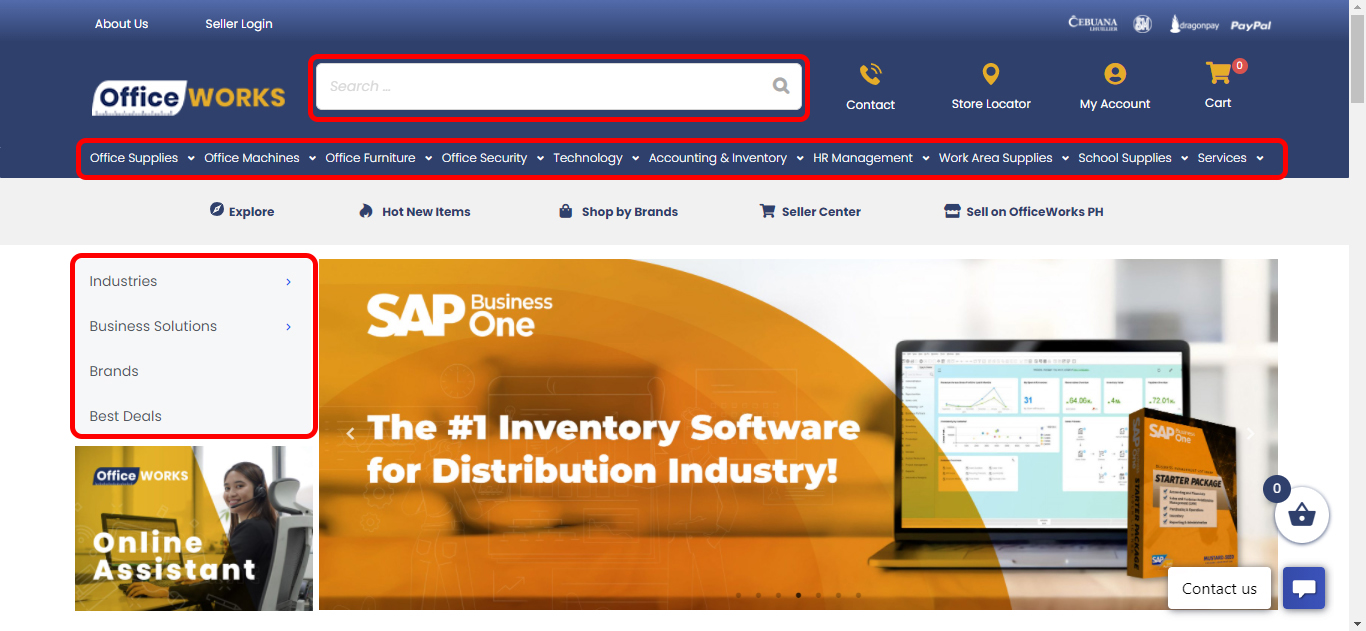
Browsing via Search bar
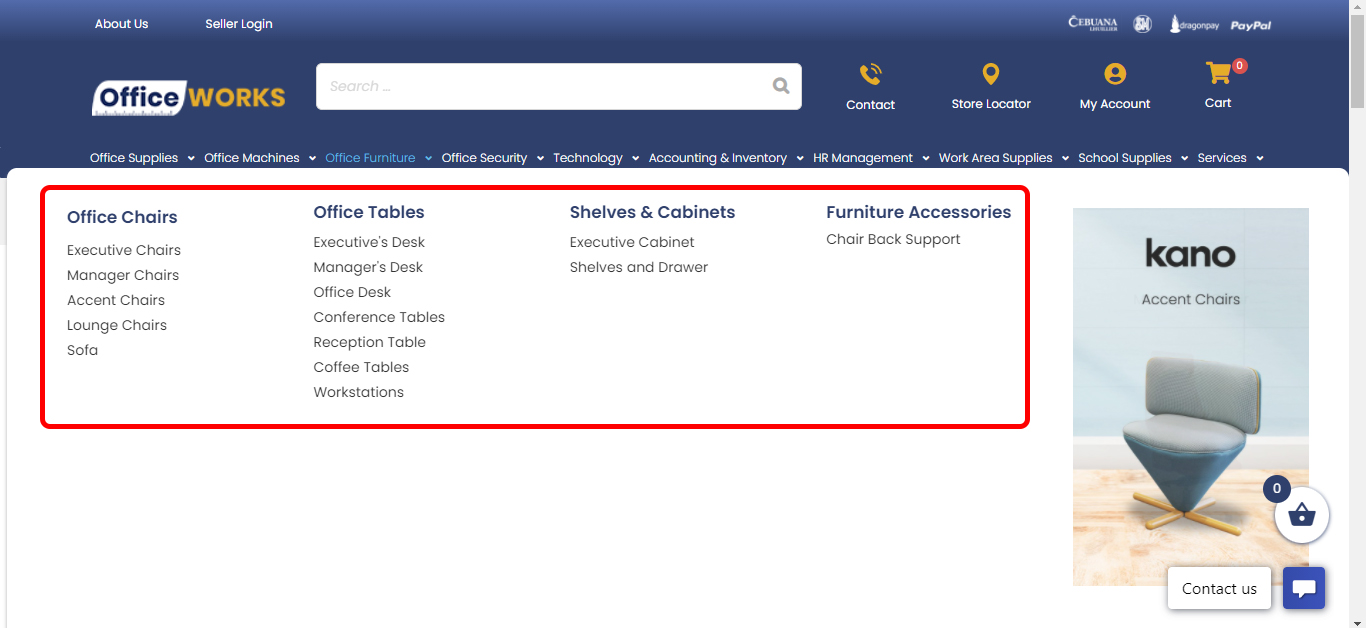
Browsing via the Top Menu
Browsing via the Left Menu
Once you’ve chosen a product or service, you can see multiple options on its product page. You can choose a model from the dropdown, see its Features and Warranty, add quantity, and finally add it to your Wishlist or Shopping Cart.
Choosing a model and adding quantity
Adding to your Wishlist
Click the heart icon to add the product to your Wishlist.
Viewing your Wishlist
From your Wishlist, you can also add single or multiple items to cart, or delete them. An item added to your cart will be removed from your Wishlist.
Removing or adding items to cart from Wishlist
Ask a Question
Have clarifications about the product? Just click the Ask a Question button, fill out the details and hit Submit. One of our sales representatives will get in touch with you the soonest.
Ask a Question Form
Adding products to Cart
Once a product is added to your cart, it will show up at the right side of your screen. You can choose to exit to continue shopping by clicking the or button, or you may proceed to Checkout.
Editing quantity of a product
To edit the quantity, simply hover over the quantity field on your cart, and edit with your desired number of items. This will automatically compute the subtotal for that item.
Deleting a product from your cart
To delete the quantity, click the delete icon on your cart, and the website will confirm if you wish to proceed with this action.
Once you proceed with deleting the item, the Cart Total will also be updated.
Viewing your Cart
Another way to view your cart is by clicking the Cart icon at the upper right corner of the website.
Checking out your Cart
Once you decide to checkout your item(s), you will be redirected to the Checkout Page. On the Checkout Page, you can either choose to continue by Logging In to your OfficeWorks.ph account or simply proceed to filling out your Billing details without signing in.
If you have previously updated your Billing and Shipping address in your account, the fields will be automatically filled out. You can also opt to edit them.
Creating your Account
Creating an account is optional. You can simply input your details to proceed with the order. However, if you wish to create an account, just tick Create an Account on the Checkout Page. You will then receive an email to reset your password.
Shipping to a different address
You can choose to ship the item on the address indicated on the Billing Details form, or you can tick the box and a new form will be available for you to put a different address. Again, if you are logged in and have previously set your sipping details, they will be automatically filled out. You can also provide additional notes for the delivery.
Applying Coupons
At the top of the Billing and Payment Page, you may also add your Coupon Code for additional discounts.
Coupon being deducted from cart
After entering your Coupon Code, the amount or percentage will be deducted from your Cart Total.
Choosing your Delivery Method
There are different types of Delivery and Pickup options:
-
●Free Shipping – Automatically applied to cart with a total of Php 3,000 and above. Applicable within Metro Manila only.
-
●Standard Shipping – Standard shipping which takes 3-15 working days for your item to arrive.
-
●Grab or Lalamove – Applicable to orders from our Kamias and Ortigas branches (for addresses within Metro Manila and CALABARZON only). Simply schedule pickup date and time with our sales representative indicated in the Checkout Page. Customer will shoulder the expense for the booking, and will pay via Grab or Lalamove app.
-
●Store Pickup – Applicable to all branches. Customers can opt to pickup their items from the branch nearest to them. Just schedule the pickup date and time with our sales representative as indicated in the Check out page.
Choosing your Payment Method
After selecting your preferred Shipping option, you may now choose from our Payment Options. You can pay through several Payment Channels:
Bank Deposit
Choose bank deposit if you wish to settle your payment over the counter by depositing or sending an online transfer via one of our bank accounts. Choosing this option will require you to email a photo of your deposit slip along with the Order Number for us to confirm your payment.
GCash
Choose GCash if you wish to settle your payment via the GCash app. Using this option will require you to input the total amount and scan a QR code to settle the payment. You also need to email us a screenshot of the successful GCash fund transfer for us to confirm your payment.
Credit Card
Choose Credit Card if you have a card from Visa, Mastercard, American Express or JCB. If you choose this option, you will be redirected to the Pesopay window or tab to input confidential credit card information. You will also be required to input an OTP you will receive via SMS.
Dragonpay & TendoPay
Dragonpay
Choose Dragonpay if you do not have a credit card and prefer to pay via Online Banking, ATM, or Payment Centers. There are a variety of affiliate banks and partners you can choose from, and they are divided into two types which are:
Online Banking / E-Wallet
Online Banking will allow you to debit the amount from your current online bank accounts, including BDO, BPI, Metrobank and even GrabPay. If you choose this option, you will be redirected to your bank’s website and will require you to login to your online bank account. Some banks would ask you to pay service fees on top of your total bill.
Over-the-Counter and ATM Banking
Through Over-the-Counter payment and ATM Banking, you can pay through Payment Centers such as LBC, Palawan Pawnshop, Cebuana Lhuillier, SM Department Store, or any Bancnet ATM among others. Once you have chosen your preferred Payment Center, you will get an email or SMS instruction on how to settle your payment offline. There will be a payment deadline (date and time) before the transaction is considered void.
TendoPay
TendoPay is an installment plan solution that lets customers pay for online purchases in 2 to 24 month installments even without a credit card or bank account. If you wish to pay your transactions in installment through a loan from TendoPay, you need to apply for a TendoPay Account first.
BDO Wallet
Choose BDO Wallet if you wish to pay via GCash, GrabPay, or WeChat Pay. When you use this option, you will be required to login to your preferred payment method.
Placing your Order
Once you have chosen your preferred Payment Option, simply agree to the Terms and Conditions by ticking the box, and click or tap Place Order
Payment Instructions
You’re all done! The next page will give you a summary of your purchase, as well as additional payment instructions if you have chosen Bank Deposit, GCash or non-bank over-the-counter payments. For Dragonpay Online Bank Transfer, TendoPay, Credit Card and MAXXPayment, you will be redirected to another window or page where you will enter your account information or OTP.
You may also refer to the step-by-step guide per Payment Method where we have detailed information on the payment instructions on the website and email, as well as the redirection process.
Note that some payment methods have charges on top of your purchase.